Team workspaces: create, invite, and manage
Last updated: September 25, 2026
How to create a team workspace on Comfy Cloud, invite teammates, and manage members and roles.
Q. What is a workspace?
Everything you do on Comfy Cloud lives in a workspace. Your workflows, uploads, outputs, plan, and credits belong to the workspace, not to you personally.
Personal workspace: Every account gets one automatically. Only you can use it, and it can't be deleted.
Team workspace: This is a workspace you create or are invited to. Its members share its files and its credit pool.
If someone invited you to their team, you don't need to create anything. Open the invite email, sign in with that same email address, and switch to the workspace.
Q. How do I create a team workspace?
Click your profile picture in the top right corner.
Click your workspace name to open the workspace list.
Click Create a workspace at the bottom of the list.
Enter a name and click Create.
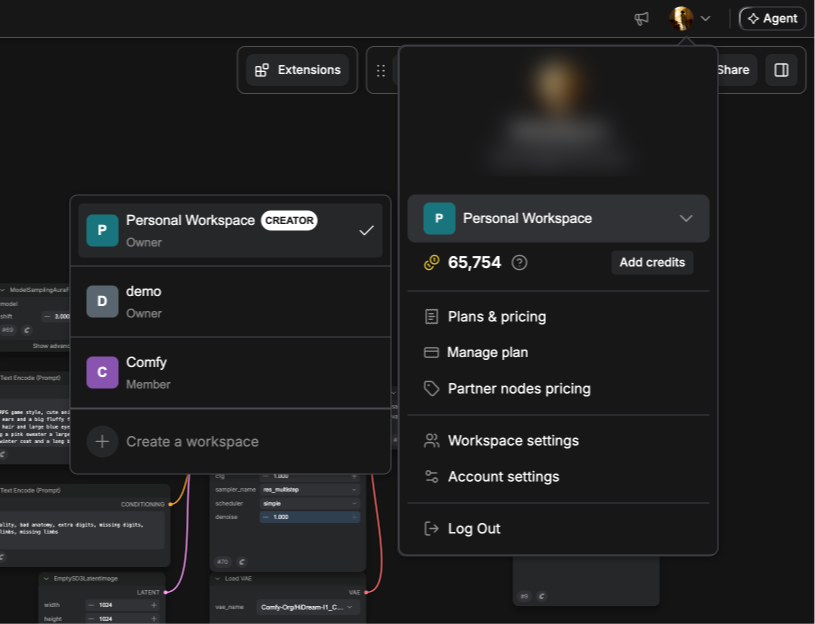
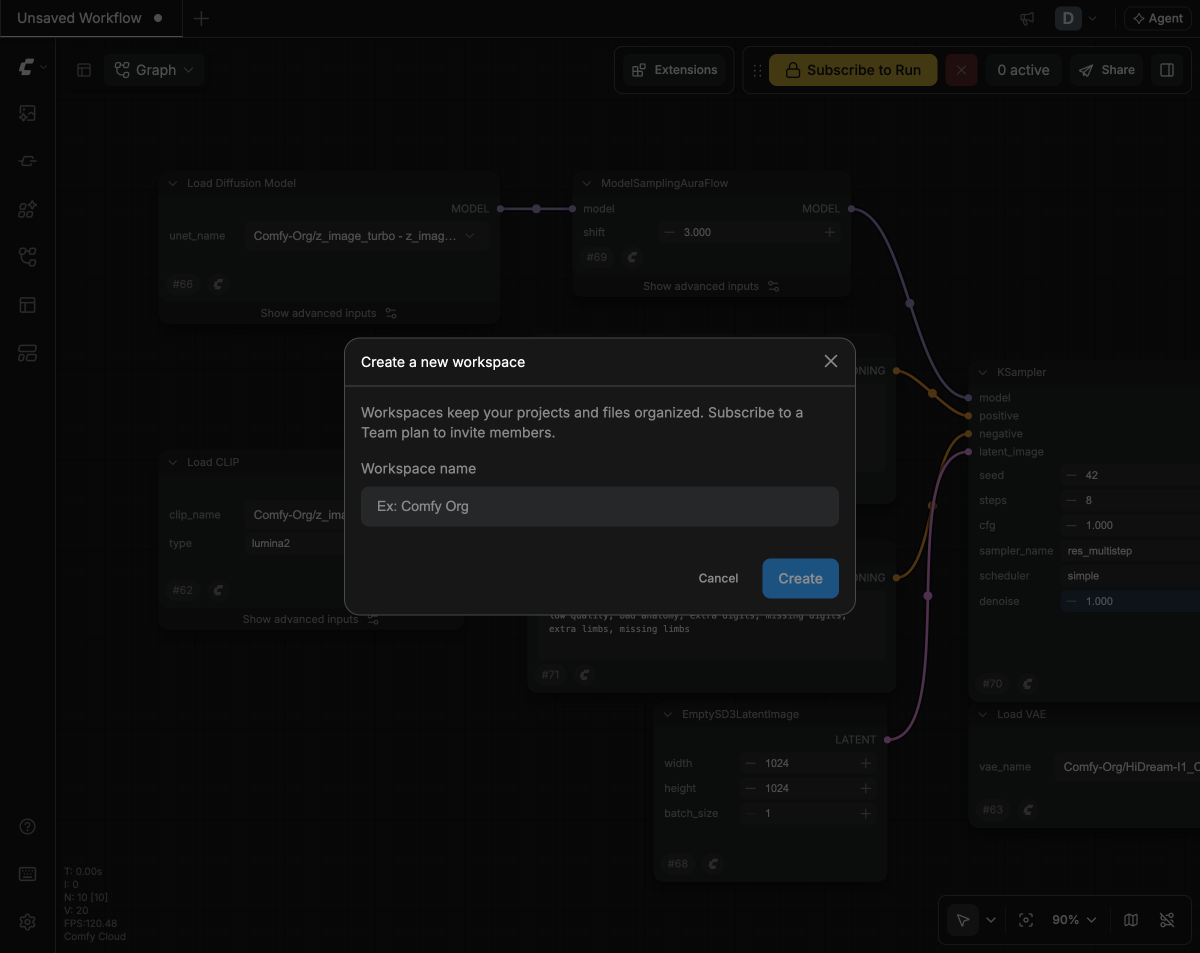
Comfy Cloud switches you into the new workspace right away. Creating a workspace is free, but it needs a Team plan before you can invite teammates.
👉 See Comfy Team Plan
You can own up to 10 workspaces, including your Personal one, and join as many as you're invited to.
Q. How do I invite teammates?
Only workspace owners can invite people, and the workspace must be on a Team plan.
Open the profile menu and click Workspace settings.
Go to Members and click Invite.
Enter one or more email addresses, separated by commas, and click Invite.
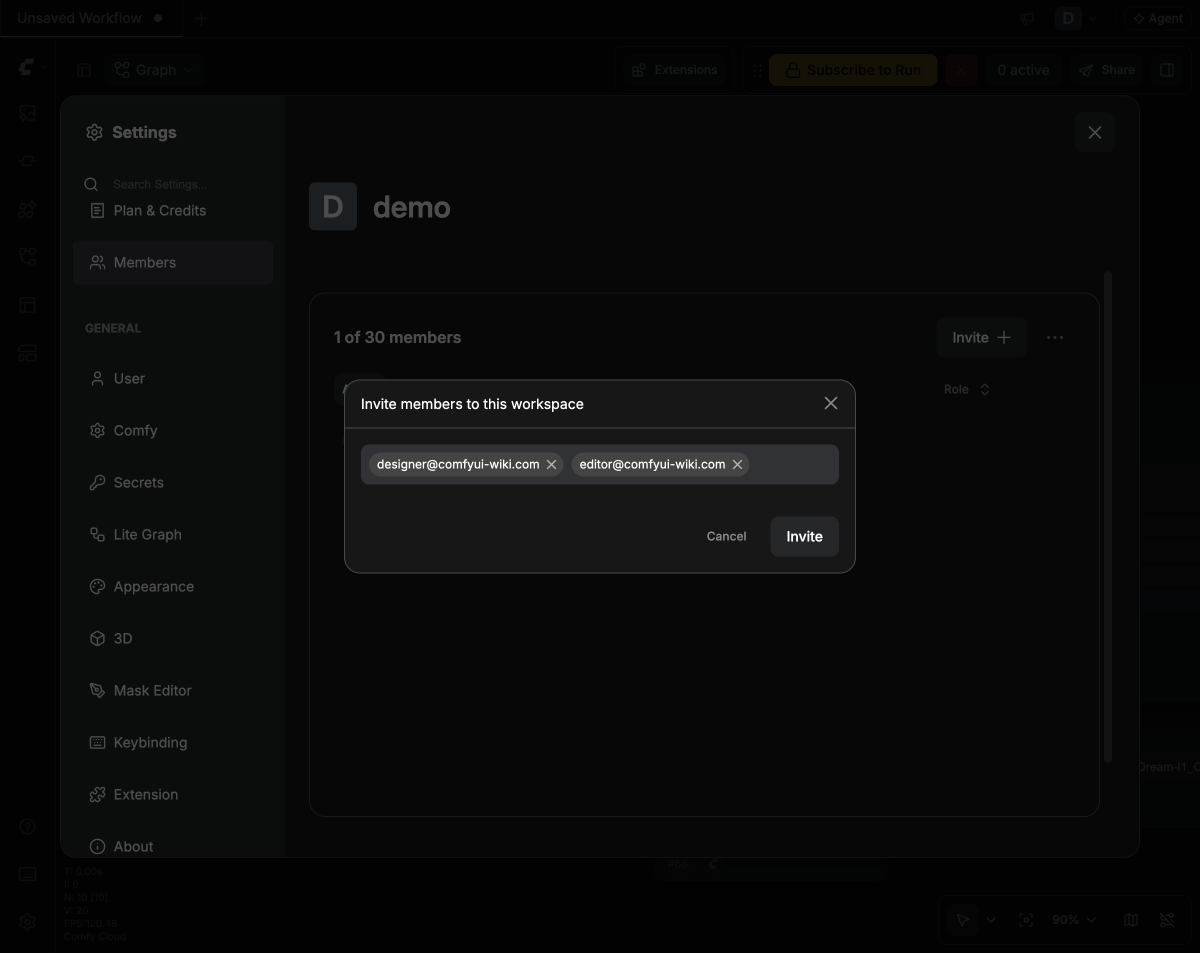
Each person gets an email invitation. They must sign in, or sign up, with the exact email address the invite was sent to. Invites expire after 30 days.
Q. My teammate didn't get the invite, or it expired. What do I do?
Go to Workspace settings → Members → Pending. From there you can resend the invite, copy the invite link to send it directly, or cancel the invite.
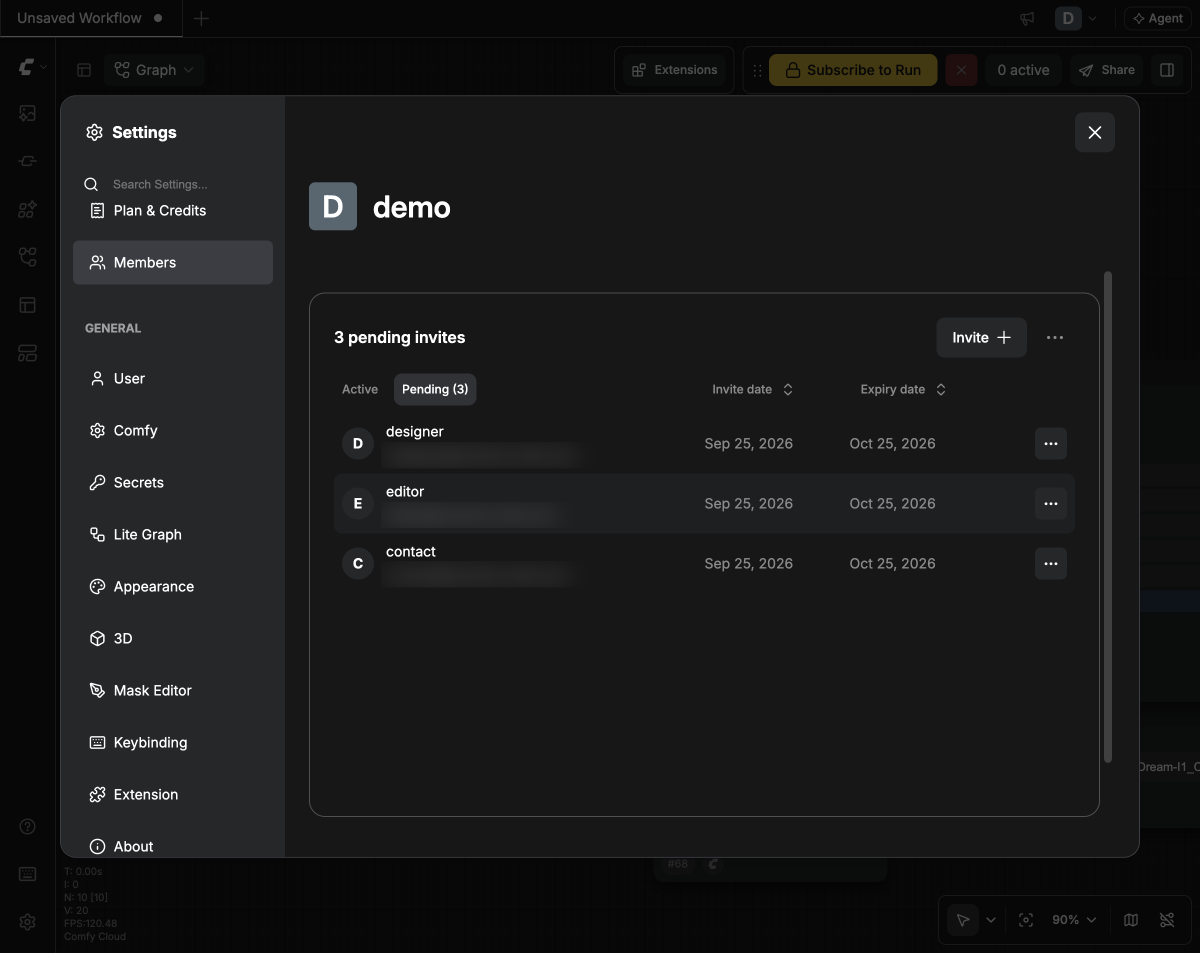
Sometimes a teammate gets the invite but still can't join. The most common cause is signing in with a different email than the one invited, such as a personal Google account instead of a work email.
Q. Why can't I invite anyone?
The workspace isn't on a Team plan. Without one, a workspace has a single seat, which belongs to the owner. Upgrade from Plan & Credits.
All seats are in use. The Members tab shows how many seats are used, for example "3 of 20 members". Pending invites count toward this, so cancel old invites or remove members to free a seat.
You're a Member, not an Owner. Ask a workspace owner to send the invite.
Q. How do I switch workspaces?
Open the profile menu, click your workspace name, and pick a workspace. Comfy Cloud reloads and remembers your choice the next time you sign in.
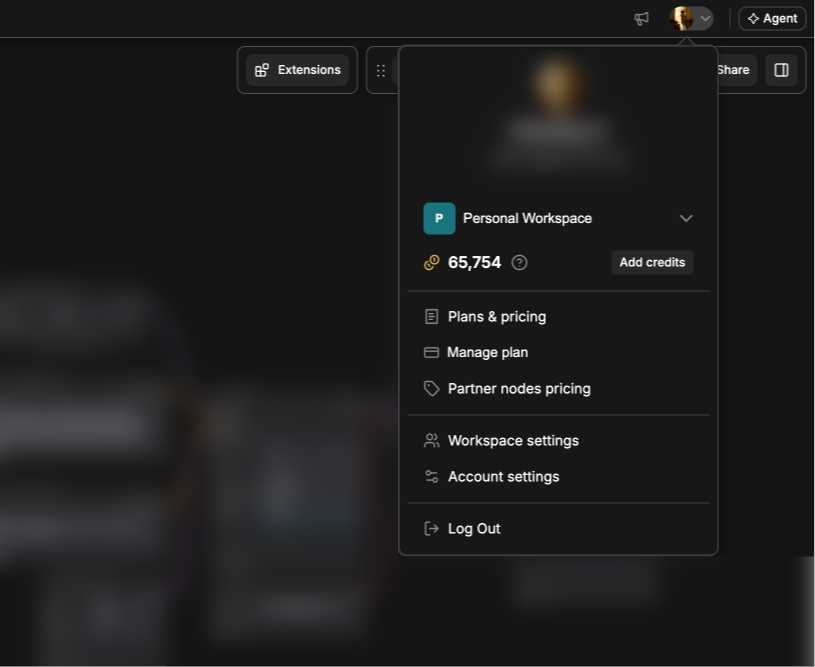
💡 If your workflows or files seem to have disappeared, check which workspace you're in. Each workspace has its own files, and nothing is copied between workspaces.
Q. What can owners and members do?
Owners invite and remove members, change roles, rename or delete the workspace, and manage the plan and credits.
Members run workflows using the workspace's credits and can see who is in the workspace. They can't invite people, change settings, or manage billing.
Owners can promote a member to owner from the Members tab. A workspace always keeps at least one owner.
Q. Do my teammates need their own subscription?
No. Runs in a team workspace use the workspace's shared credit pool, which owners manage. Members aren't billed individually.
Q. What happens if the workspace runs out of credits?
Members can't run workflows until an owner adds more credits. The same happens if the subscription is inactive or a payment fails. In either case, members see a message asking them to contact the workspace owner.
Q. How do I leave or delete a team workspace?
To leave: Go to Workspace settings → Members, open the ⋯ menu, and choose Leave Workspace. You can't leave a workspace you created, or one where you're the only owner.
To delete (owners only):
Go to Workspace settings → Plan & Credits, open the ⋯ menu, and choose Cancel plan. Skip this step if the workspace has no plan.
Go to Workspace settings → Members, open the ⋯ menu, choose Delete Workspace, and confirm.
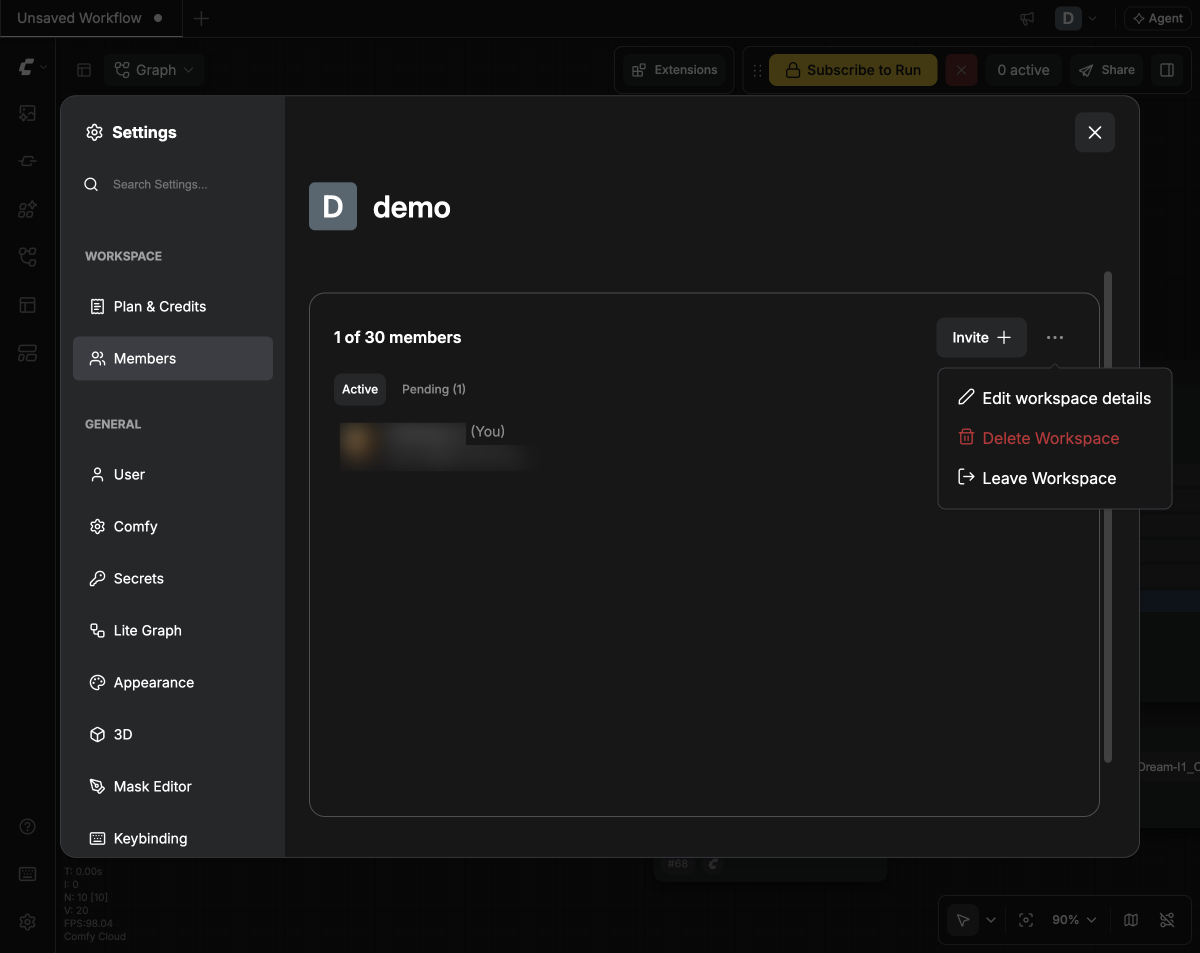
Deleting is permanent. Any unused credits and unsaved assets are lost. Personal workspaces can't be deleted, and Enterprise workspaces are closed through our sales team.
Q. Can I merge workspaces or move work between them?
You can't merge workspaces yet, but you can move assets and workflows over manually.
👉 See the migration steps in Comfy Team Plan
Q. Where can I learn more?
👉 See Comfy Docs – Workspaces
👉 See Comfy Team Plan